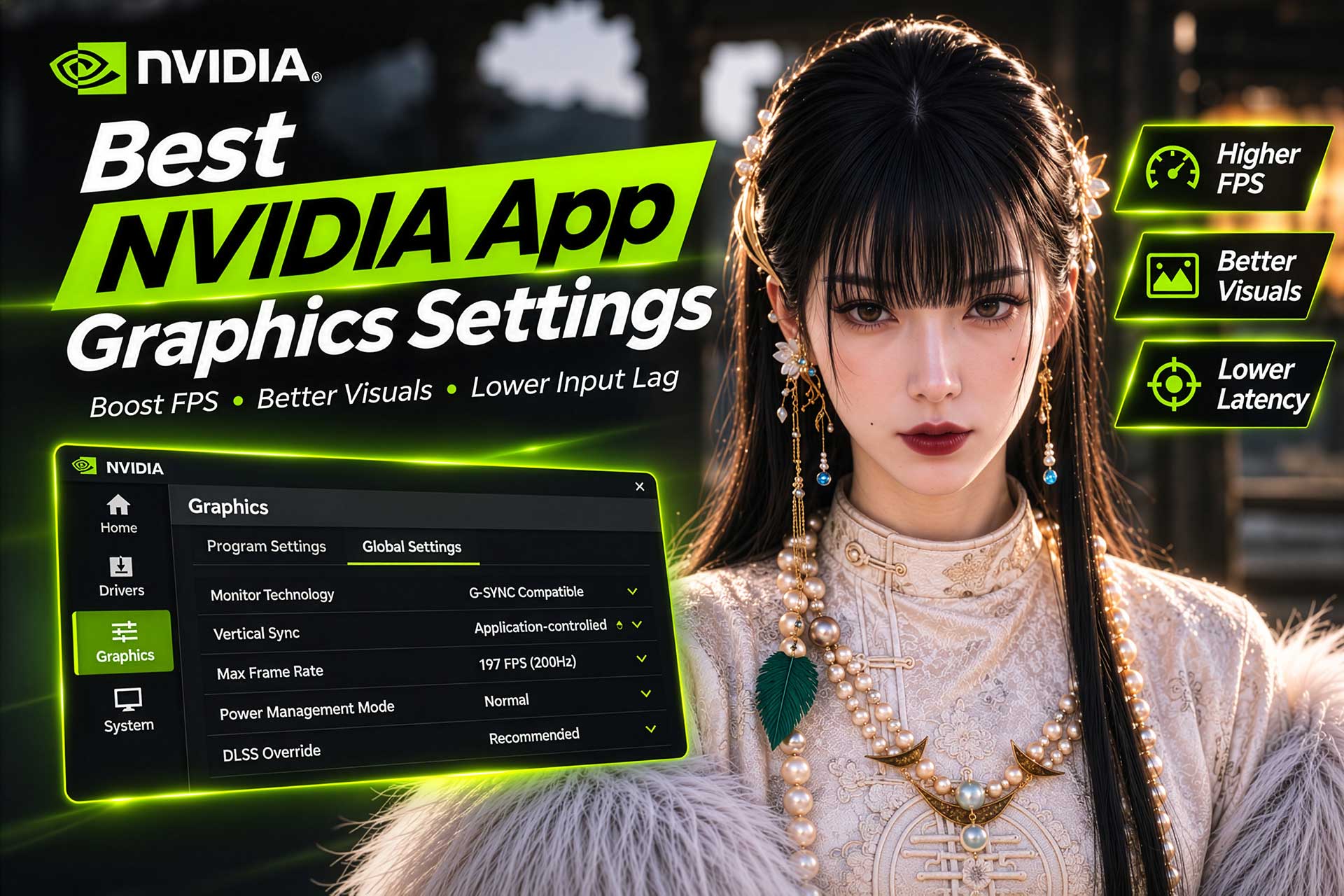
The best NVIDIA App graphics settings can improve gaming performance, reduce input lag, and deliver better image quality. Whether you’re using an RTX 5060 Ti or a high-end RTX 5090, adjusting a few settings can help your games run smoother.
NVIDIA App includes several options for controlling GPU performance, texture quality, DLSS, frame rates, and latency. You don’t need to change everything. Most settings work well at their defaults, but a few adjustments can make a noticeable difference to your gaming experience.
In this guide, I’ll show you the best NVIDIA App graphics settings for gaming in 2026, including recommended configurations for RTX 50 Series GPUs.
With more demanding AAA games on the horizon, preparing your gaming PC for the next generation of graphics technology is becoming increasingly important. Newer titles are pushing visual quality with detailed environments, advanced lighting, ray tracing, and higher-resolution textures. NVIDIA DLSS 5 takes things further with AI-powered neural rendering, designed to deliver more realistic lighting and materials in supported games.
Upcoming DLSS 5-supported titles include Resident Evil Requiem, Starfield, Hogwarts Legacy, Assassin’s Creed Shadows, and Where Winds Meet. Other major releases, including Phantom Blade Zero, Crimson Desert, Forza Horizon 6, and Grand Theft Auto VI (which has no officially announced PC release date), are also worth keeping an eye on as PC gaming continues to evolve.
Now is a good time to optimize your NVIDIA graphics settings, fine-tune DLSS, and get the best performance out of your graphics card for current and future AAA games.
1. How to Access NVIDIA App Graphics Settings

- Open NVIDIA App on your PC.
- Click Graphics in the left sidebar.
- Select Global Settings to change general graphics options.
- Select a specific game under Program Settings to customize it.
- Scroll down to find the available graphics and driver options.
Global Settings apply general preferences across supported games, while Program Settings let you customize individual games. I recommend keeping most global settings at their defaults and making game-specific adjustments only when needed.
2. Best NVIDIA App Graphics Settings
Here are my recommended settings for most gaming PCs. They balance performance, image quality, and power consumption.
| Setting | Recommended Value | Why It Matters |
|---|---|---|
| Monitor Technology | G-SYNC (if supported) | Removes screen tearing without the lag of traditional V-Sync |
| Vertical Sync | Use the 3D application setting (or On with G-SYNC) | Avoids conflicts between the driver and in-game V-Sync |
| Max Frame Rate | 3 FPS below monitor refresh rate (e.g. 141 for 144Hz) | Keeps G-SYNC active and prevents V-Sync input lag |
| Low Latency Mode | On (use in-game Reflex instead where available) | Reduces render queue delay for more responsive input |
| Power Management Mode | Normal (try Prefer maximum performance if clocks fluctuate) | Normal suits most users; max performance keeps clock speeds steady |
| Texture Filtering – Quality | Quality (High performance if you need extra FPS) | Balances texture sharpness against frame rate |
| Image Sharpening | Off globally, on per game as needed | Prevents over-sharpened visuals in games that don’t need it |
| Shader Cache Size | Driver default (or 10 GB) | Reduces stutter by storing compiled shaders |
| Background App Max Frame Rate | 20-30 FPS | Saves GPU power when a game is tabbed out |
| Anisotropic Filtering / Antialiasing | Application-controlled | Forcing these from the driver often causes glitches |
| DLSS Override (RTX cards) | Recommended | Gives older DLSS games newer supported models without patches |
| Frame Generation | Best with a base FPS of 50+ | At lower base frame rates, the added latency is more noticeable |
Recommended: Use Game-Specific Profiles
These settings are general recommendations, not fixed requirements for every game. You can use them as a reference and apply or adjust them under NVIDIA App → Graphics → Program Settings to create individual profiles for specific games.
For example, you might use DLSS Quality and Frame Generation for demanding single-player games, while prioritizing lower latency and stable FPS for competitive shooters.
This approach lets you customize graphics performance for each game without changing your global NVIDIA settings.
3. Key NVIDIA App Settings Explained
Here’s what the most important options do, what I recommend, and when you might change them.
Monitor Technology
Recommended: G-SYNC if supported.
G-SYNC synchronizes your monitor’s refresh rate with your GPU’s frame output to reduce tearing and stuttering. If your monitor supports G-SYNC or G-SYNC Compatible, enable it in the NVIDIA display settings.
Choosing the right monitor matters as much as the software. See our guide to the best gaming monitors for displays with high refresh rates, low response times, and adaptive sync.
Vertical Sync
Recommended: Use the 3D application setting.
This lets each game control V-Sync itself. If you use G-SYNC, many players set V-Sync to On in the driver and turn it off in-game. Either way, avoid enabling it in both places.
Max Frame Rate
Recommended: 3 FPS below your monitor’s refresh rate when using G-SYNC.
For example, use 141 FPS for a 144Hz monitor, 162 FPS for 165Hz, or 197 FPS for 200Hz. This keeps frame rates inside the variable refresh range and avoids hitting the monitor’s maximum refresh rate.
Low Latency Mode
Recommended: On.
This reduces the number of frames queued up for rendering, which lowers input lag. If a game supports NVIDIA Reflex, enable Reflex in the game’s own settings instead, as it handles latency more effectively and replaces the need for Ultra here.
Power Management Mode
Recommended: Normal.
Normal is fine for most users and keeps idle power draw low. Try Prefer maximum performance on a per-game basis if you notice inconsistent GPU clock speeds.
Resizable Bar (Available in Program Settings)
Recommended: On (if supported).
Resizable BAR allows your CPU to access more of your GPU’s video memory at once, which can improve gaming performance in supported games. Enable it in your motherboard BIOS if your CPU, motherboard, and graphics card support the feature.
The actual FPS improvement varies depending on the game and hardware configuration.
Texture Filtering - Quality
Recommended: Quality.
This keeps textures sharp with little performance cost on modern GPUs. Switch to High performance only if you need a few extra frames.
Shader Cache Size
Recommended: Driver default.
The shader cache stores compiled shaders so games don’t have to rebuild them, which reduces stutter. A larger value such as 10 GB can help if you play many games, but the default is enough for most people.
Image Sharpening
Recommended: Off globally.
Image Sharpening adds extra clarity in some games. Many games already include their own sharpening, so enabling both can make textures and edges look overdone. Keep it off globally and enable it per game when needed.
Background Application Max Frame Rate
Recommended: 20-30 FPS.
This limits the frame rate of games running in the background, such as when you minimize a game. It reduces unnecessary GPU usage, power consumption, and heat.
Anisotropic Filtering and Antialiasing
Recommended: Application-controlled.
Anisotropic Filtering improves texture clarity and Antialiasing smooths jagged edges. Most modern games include their own options for both, and letting the game control them avoids driver overrides and visual issues.
DLSS Override
Recommended: Recommended.
For supported RTX games, NVIDIA App can override DLSS Super Resolution, Frame Generation, and Ray Reconstruction. Start with NVIDIA’s Recommended model selection rather than forcing a specific preset. It’s a good way to get newer supported DLSS models without waiting for a game update.
Frame Generation
Recommended: Enable when your base FPS is reasonable.
Frame Generation creates additional frames to increase displayed FPS. I suggest a base frame rate of around 50-60 FPS before enabling it, though this isn’t a strict rule. The lower your base FPS, the more noticeable input latency and frame pacing issues become. Enable Reflex where available.
4. Best NVIDIA App DLSS Settings

DLSS (Deep Learning Super Sampling) is one of the most useful features on RTX cards. It uses AI to render games at a lower internal resolution and upscale the image, improving FPS and often image quality. NVIDIA App’s DLSS Override options let you use newer DLSS models without waiting for individual game updates.
DLSS Super Resolution Modes
| DLSS Mode | Best For |
|---|---|
| DLAA | Best image quality |
| Quality | Balanced image quality and performance |
| Balanced | Higher FPS with good image quality |
| Performance | Prioritizing higher FPS |
| Ultra Performance | Very demanding high-resolution gaming |
My recommendation: Start with DLSS Quality at 1440p. If your GPU struggles to hold a stable frame rate, try Balanced or Performance. DLAA is a good option if you have performance headroom and want the best image quality.
Your GPU also determines how well you can run DLSS at higher resolutions. If you’re planning an upgrade, check our guide to the best NVIDIA GPUs for 4K gaming.
DLSS Model Preset
NVIDIA App lets you override DLSS models in supported games. These models handle image reconstruction and affect detail, sharpness, and stability.
My recommendation: Leave the model selection on Recommended. You can try other available models if you notice image quality issues in a particular game.
Lorem ipsum dolor sit amet, consectetur adipiscing elit. Ut elit tellus, luctus nec ullamcorper mattis, pulvinar dapibus leo.
DLSS Frame Generation
Frame Generation creates additional frames between traditionally rendered frames, making gameplay look smoother and increasing displayed FPS. It’s especially useful in demanding games.
| DLSS Feature | Supported GPUs |
|---|---|
| Super Resolution | RTX 20 Series and newer |
| Frame Generation | RTX 40 Series and newer |
| Multi Frame Generation | RTX 50 Series |
My recommendations: Enable Frame Generation when your game already delivers a reasonable base frame rate. On an RTX 50 Series GPU, you can also try Multi Frame Generation in supported games for higher displayed FPS. Enable NVIDIA Reflex where available.
Generated frames don’t replace traditionally rendered ones, so a decent base FPS will generally feel smoother than relying on Frame Generation to compensate for poor performance.
Different games benefit from different DLSS setups. For a practical example, see our best graphics settings for Where Winds Meet.
5. Additional NVIDIA GPU Settings Outside the NVIDIA App
A few adjustments in your BIOS and Windows can also improve gaming performance.
Resizable BAR
Enable Resizable BAR (Re-Size BAR) in your motherboard BIOS if your CPU, motherboard, and graphics card support it. It lets the CPU access more of the GPU’s video memory at once, which can improve performance in some games. The gain depends on the game and your hardware.
Hardware-Accelerated GPU Scheduling (HAGS)
Enable it in Windows under Settings → System → Display → Graphics → Advanced graphics settings. (Menu locations can vary between Windows 11 builds.) It lets the GPU manage certain scheduling tasks instead of relying entirely on the CPU. Results vary by game, so test it both ways if you experience stuttering.
Windows Power Plan
Choose a plan under Control Panel → Power Options.
| Power Plan | Best For |
|---|---|
| Balanced | Everyday use and gaming |
| High Performance | Prioritizing system performance (doesn’t guarantee higher gaming FPS) |
Recommended: Balanced for most users. High Performance is worth testing if you see unusual CPU clock fluctuations.
My recommendation: Start with Resizable BAR enabled (if supported), test HAGS, and use the Balanced power plan. These give you a good baseline without forcing your PC to draw more power than necessary.
Frequently Asked Questions
What are the best NVIDIA App graphics settings for gaming?
Start with Normal Power Management, Quality Texture Filtering, the driver default Shader Cache, and application-controlled antialiasing. Use NVIDIA Reflex in supported games and adjust DLSS based on your GPU and resolution.
Should I use NVIDIA Global Settings or Program Settings?
Use Global Settings for general preferences and Program Settings to customize individual games. Program Settings are useful when different games need different configurations.
Does NVIDIA App Optimize improve FPS?
It can, by adjusting supported game graphics settings based on your hardware. Results depend on your GPU, CPU, game, and original settings.
Should I enable Prefer Maximum Performance?
Not for every game. Normal suits most users. Try Prefer Maximum Performance for individual games if you experience inconsistent GPU clock speeds.
Is DLSS Quality better than Performance?
DLSS Quality generally gives better image quality because it uses a higher internal resolution. Performance mode prioritizes higher FPS but can look softer.
Can NVIDIA App settings increase GPU temperature?
Yes. Higher frame rates, heavier rendering workloads, and Frame Generation can increase GPU usage and temperature. This is normal as long as your GPU stays within its operating temperature limits.
Final Thoughts
The best NVIDIA App graphics settings depend on your GPU, monitor, and the games you play. For most gaming PCs, the defaults are already a good starting point.
Focus on a few key options: Low Latency Mode (or Reflex in-game), Texture Filtering, DLSS, and Frame Generation. You don’t need to force every setting to maximum performance. A balanced configuration delivers smooth gameplay, good image quality, and reasonable GPU temperatures without unnecessary tweaking.